Convert to PDF
How to Convert a Scanned Image to PDF for an Admission Form
Admission and application forms almost always want a PDF, not a photo. Here is how to get there cleanly from a phone photo or scan.
By David Valle
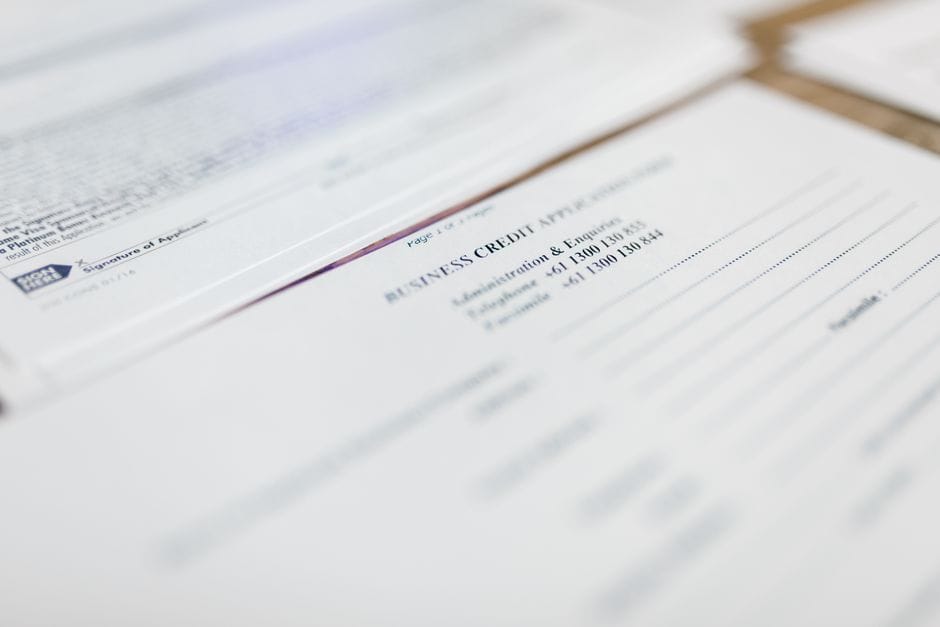
Admission systems for schools, universities, and government services almost always specify PDF as the required upload format, even when the actual source document is a photo or a scanned image. An image to PDF tool bridges that gap in a couple of minutes, without needing a scanner or specialized software.
Why forms insist on PDF specifically
PDF displays identically regardless of the device or software used to open it, which matters a great deal to an institution processing potentially thousands of submissions from applicants using every kind of device imaginable. A raw photo, by comparison, can appear rotated, oddly cropped, or oversized depending on the viewer, which is exactly the inconsistency a PDF requirement is meant to avoid.
Getting a clean photo before converting
The quality of the final PDF depends entirely on the quality of the original photo or scan. No conversion step can add back detail that was not captured clearly in the first place.
- Use even, natural lighting, and avoid direct flash, which often creates a bright glare spot directly on the document.
- Hold the camera directly above the document, parallel to it, rather than at an angle, to avoid a skewed or trapezoid-shaped result.
- Make sure the entire document, including all four edges, fits inside the frame before capturing the photo.

Converting the image to a PDF
- Upload the photo or scanned image to an image-to-PDF tool.
- Choose a standard page size like A4 if the form specifies one, or fit-to-image if no particular size is required.
- Convert and download the resulting PDF.
- Open it once to confirm the document is fully legible and correctly oriented before uploading it to the actual form.
What to do with multiple required documents
Many admission forms ask for more than one document, like an ID page and a previous certificate, submitted together. The most reliable order is to convert each photo into its own PDF first, then combine them into a single file in whatever order the form instructions specify, rather than trying to combine raw image files directly before any of them have been converted.
Checking the file meets the form's requirements
Admission systems frequently specify both a file format and a maximum size, commonly somewhere between 1MB and 5MB. After converting, checking the resulting file size against the stated limit avoids a rejected upload; if it exceeds the limit, compressing the PDF afterward, particularly for a photo-based document, usually brings it comfortably under a typical requirement.
Retaking a photo instead of trying to fix it afterward
If a photo comes out blurry, at an angle, or with a glare spot obscuring part of the document, it is almost always faster to retake the photo properly than to try to improve it after the fact. There is no conversion setting that restores detail a blurry or glare-obscured photo never captured in the first place, so a minute spent retaking the shot under better conditions saves more time than any amount of after-the-fact adjustment ever could. This is especially worth remembering under deadline pressure, when the temptation to submit a mediocre first attempt rather than pause and redo it is strongest.
Frequently asked questions
Is a phone photo good enough, or does a real scanner produce better results?
A clear, well-lit phone photo, taken directly above the page, is sufficient for the vast majority of admission form requirements. A dedicated scanner produces a marginally more even result but is rarely a strict requirement.
What if the form asks for a specific page size like A4?
Choose that exact standard size option during the image-to-PDF conversion step, rather than leaving the tool set to fit-to-image, which would otherwise produce a page sized to match the photo instead of the requested standard.
Can one PDF contain both the photo-based document and a typed cover form?
Yes, once both pieces exist as separate PDFs, whether from converting a photo or from a typed document, merging them together into a single file in the required order works the same way regardless of how each piece originated.
Meeting an admission form's PDF requirement starts with a clean, well-lit photo and ends with a quick size and legibility check, and the conversion step in between takes only a couple of minutes using a browser-based tool.
Similar articles
 Convert to PDFHow to Convert Word, JPG, and Images to PDF
 Optimize PDFHow to Compress a PDF for a Job Application Upload
 Convert to PDFHow to Convert a Word Document to PDF Without Losing Formatting
 Convert to PDFHow to Convert Screenshots and PNG Images to PDF
 Convert to PDFPNG or JPG to PDF: Which Image Type Should You Use?