Organize PDF
How to Extract One Page From a PDF Without Software
Pull a single page out of a longer PDF and save it as its own file, without installing anything.
By David Valle

Needing just one page out of a longer PDF is one of the most specific and common small tasks in document handling: a single certificate from a multi-page bundle, one relevant page from a long report, or an ID page buried inside a larger scanned file. A browser-based split tool handles this without installing anything.
The simplest route to one page
- Upload the full PDF that contains the page you need.
- Split it, which produces one file per page automatically.
- Download only the specific page you actually wanted, ignoring the rest.
This approach works even without knowing exactly which numbered file corresponds to the page beforehand, since files are typically numbered in the same order as the original document, matching the page you saw while reviewing it.
Why this beats screenshotting a page
Taking a screenshot of a PDF page open in a viewer is a common workaround, but it comes with real downsides. A screenshot is an image, not a real document page, so any text on it stops being selectable or searchable. It also captures whatever the screen happened to show, including toolbar clutter or a slightly cropped edge, rather than the clean, complete page. Extracting the actual page instead preserves the original text, formatting, and full page boundaries exactly as they were in the source PDF.
Knowing which page number to look for
Before extracting, it helps to note the page number while viewing the original document in any PDF reader, since most readers display a page counter, like "4 of 12," directly in the interface. That page number tells you exactly which one to keep once the document has been split into individual files.
A realistic use case: pulling an ID page
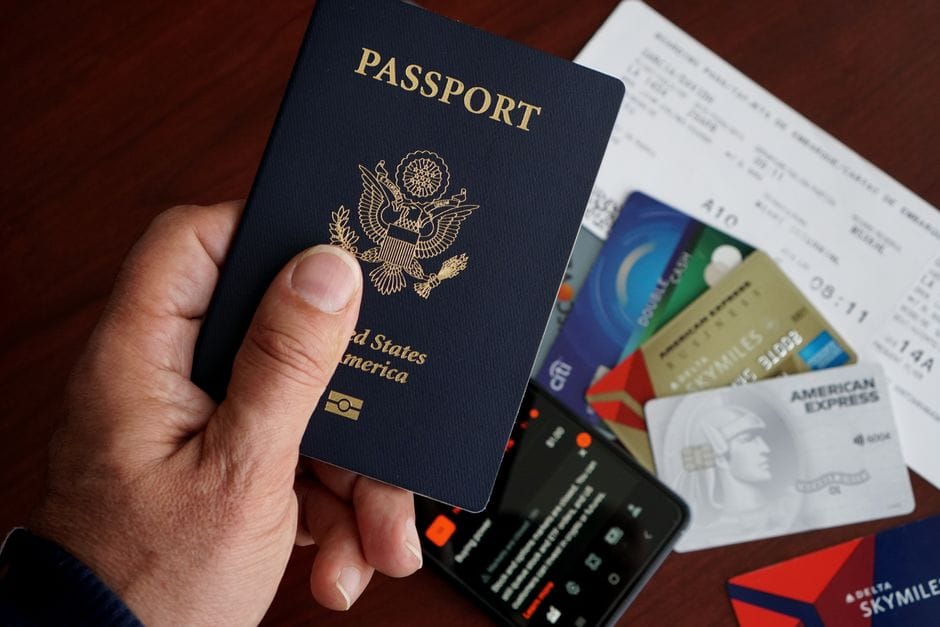
Application processes often ask for a copy of an identification document, but the identification page frequently sits somewhere in the middle of a longer scanned bundle, alongside unrelated pages. Extracting just that one page, rather than uploading or emailing the entire multi-page scan, keeps the shared material limited to only what was actually requested, which is both more considerate of privacy and less confusing for whoever receives it.
What if the page needs to go straight into a new document?
Once extracted, a single page is a completely standard PDF on its own, ready to be shared directly or merged with other files into a new combined document, exactly like any other PDF. There is no difference in how it behaves compared to a page that was part of a document from the start.
Double-checking you extracted the right page
With longer documents especially, it is worth opening the extracted single-page file once before sending it anywhere, just to confirm it actually matches the page you intended. This matters most when a document has similar-looking pages near each other, like consecutive terms in a contract or several pages of a similar form, where it is easy to be off by one page number after counting through a long PDF. A ten-second check avoids the more awkward situation of sending the wrong page and having to follow up with a correction afterward.
Frequently asked questions
Is there a faster way than splitting the entire document?
For most everyday browser tools, splitting the whole document and picking out the one page you need is the standard approach, since it requires no special page-selection step beyond noting the page number beforehand.
Will the extracted page still have working, selectable text?
Yes, as long as the original PDF had real text on that page rather than a scanned image. Extraction preserves whatever the source page actually contained.
Can several individual pages, pulled from different documents, later be combined into one file?
Yes. Once each page exists as its own standalone PDF, a merge tool combines any set of them into a single new document, regardless of which original files they came from.
Pulling out exactly the page that's needed, and nothing more, keeps sharing focused and avoids sending along unrelated content that was never actually asked for.
Similar articles
 Organize PDFHow to Split a PDF Into Individual Pages
 Organize PDFHow to Split a PDF Into Separate Files or Pages
 Organize PDFHow to Split a Large PDF Into Smaller Files Under 5MB
 Organize PDFHow to Extract Pages From a PDF: The Complete Guide
 Edit PDFHow to Delete Pages From a PDF for Free