Organize PDF
How to Merge, Reorder, and Organize PDF Files (Complete Guide)
Combine PDFs, fix page order, and straighten sideways pages, all in your browser, with no software install and no file upload to a server.
By David Valle
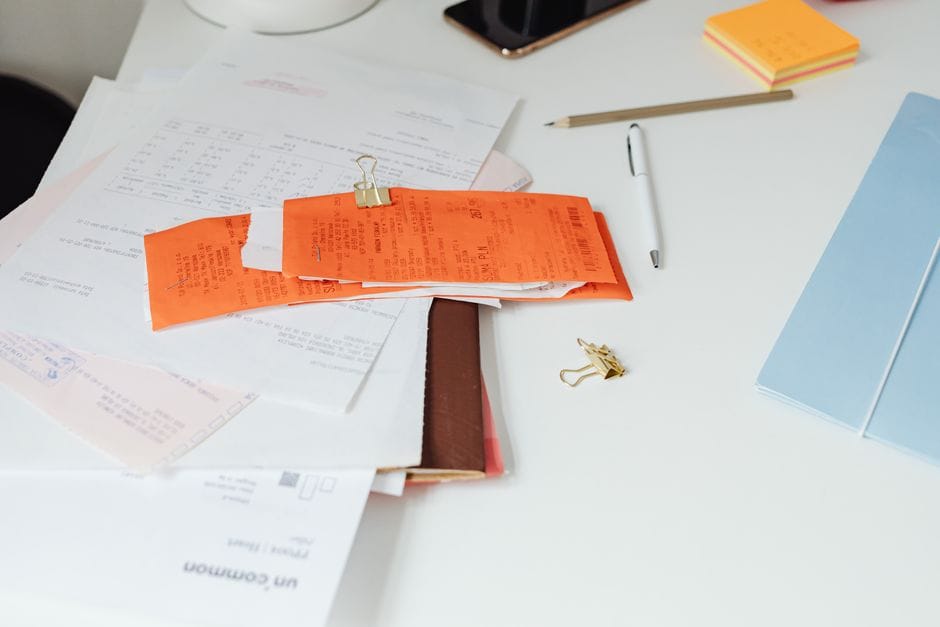
Anyone who has tried to send a scanner-produced document knows the frustration: pages land out of sequence, several unrelated files get bundled into one, or a page comes through sideways. None of that requires Adobe Acrobat or a paid subscription to fix. A browser-based merge PDF tool can combine, reorder, and rotate pages directly on your own device in under a minute, and the files never have to leave your computer to get the job done.
Why PDF organization problems keep happening
Most messy document sets trace back to the same handful of causes. A multi-function printer scans a stack of paper and saves every sheet as one long file, with no regard for which pages belong together. A form gets filled out, signed, and photographed separately from the ID copy it should accompany. A page gets fed into the scanner the wrong way round and comes out rotated ninety degrees. Each of these is a small, specific problem, and each one has a small, specific fix rather than needing a full editing suite.
Understanding which tool solves which problem saves time. Combining separate files into one belongs to a merging tool. Fixing the order of pages that are already inside a single file belongs to a page-rearranging tool. Straightening a flipped page belongs to a rotation tool. Treating these as three distinct, simple jobs, instead of one complicated one, is what makes browser-based PDF work fast.
Combining multiple files into a single PDF
Need to add pages in the middle of a PDF rather than at the end? The Insert PDF Pages tool places pages from another PDF, images, or blank pages after any page you choose.
When the goal is turning several separate PDFs into one document, the process usually looks like this:
- Add every file you want included, in any order to start.
- Drag the files into the sequence you actually want the final document to read in.
- Combine them into a single PDF.
- Download the result and open it once to confirm the order looks right.
Because a good browser tool only stitches existing pages together, nothing about the original quality, formatting, or embedded fonts changes during the process. A merge PDF tool that runs entirely client-side also means sensitive paperwork, like signed contracts or ID scans, is never transmitted to an outside server just to be joined together.
One habit worth building: always double-check the file order in the tool's preview before combining. It is far easier to fix an ordering mistake before merging than after the recipient has already opened a document with the pages in the wrong sequence.
Reordering pages that already live inside one document
Related guide: How to rearrange PDF pages online walks through reordering step by step, including how to check the final order.
Sometimes the problem is not across separate files but within a single one, where the pages themselves are out of sequence. This is where a page-rearranging tool is the better choice, since it lets you drag individual page thumbnails into whatever order makes sense, without touching anything else about the file.
Typical steps look like this:
- Upload the single PDF whose pages are out of order.
- Drag thumbnails into place, or use small arrow controls next to each page if dragging on a touchscreen is awkward.
- Apply the new order.
- Download the corrected file.
This kind of tool is especially useful for scanned booklets, contracts assembled from several signing sessions, or reports where a section got inserted in the wrong place. Because only the sequence of pages changes, nothing inside any individual page, including text, images, and formatting, is altered.

Fixing a sideways or upside-down page
A page that comes out of a scanner rotated the wrong way is one of the most common small annoyances in document handling, and one of the easiest to fix without re-scanning anything. A rotation tool lets you turn a single page, a selected group of pages, or an entire document, in either direction, and save the corrected version.
It is worth knowing that rotation changes only the page's orientation, not its underlying content. Text stays exactly as sharp as it was, images stay exactly as detailed, and nothing about the file's quality is reduced in the process, since rotation is a purely geometric change rather than a re-compression.
Choosing the right combination of tools for a real task
Real documents often need more than one of these fixes at once. A common example: a job applicant scans several separate certificates, one of which comes out sideways, and wants a single, correctly ordered PDF to attach to an online application. The practical sequence is to first straighten the rotated page, then combine all the certificates into one file, then check the page order and rearrange anything that landed in the wrong spot before the final combined document is ready to send.
Approaching it this way, one small tool at a time, tends to be faster and less error-prone than hunting for a single all-in-one editor that tries to do everything through one complicated interface.
Working with organized PDFs on a phone or tablet
None of this work requires a desktop computer. Combining, reordering, and rotating pages through a browser tool works the same way on a phone or tablet, since the processing happens locally in the browser regardless of screen size. This matters in practice more than it might seem: a huge share of scanning today happens through phone camera apps rather than dedicated scanners, which means the very next step, cleaning up and organizing those pages, often needs to happen on the same device, right after the photos are taken, rather than waiting until a computer is available.
A few small adjustments make mobile organizing smoother. Dragging thumbnails into a new order works fine with a finger on a touchscreen, though the arrow-button alternative that most rearranging tools offer tends to be more precise on a small screen than a drag gesture, since there is less room for an accidental drop in the wrong position. Rotating a page is typically a single tap regardless of device, since it does not require fine positioning the way reordering can. For merging several files together on a phone, the main practical difference from a desktop workflow is simply how the files were originally created, whether through a scanning app, saved email attachments, or downloaded documents, rather than any change to the merging process itself.
Common mistakes worth avoiding
- Combining files without previewing the order first, then noticing the mistake only after sharing the document with someone else.
- Assuming that rotating a page will make it blurrier or lower quality. It will not, since orientation and image quality are unrelated properties of a page.
- Re-scanning an entire multi-page document just to correct one flipped page, when a rotation tool fixes that single page in seconds.
- Forgetting that reordering pages does not renumber any page numbers printed as part of the page content itself; only the physical sequence in the file changes.
Frequently asked questions
Can a PDF and a Word document be combined directly?
Not in one step. Convert the Word document into a PDF first, then combine it with your other PDF files. Doing the conversion first keeps formatting consistent across every page of the final combined document.
Does merging or rotating reduce a document's quality?
No, in both cases. Merging only joins existing pages together without touching their content, and rotation only changes orientation, not the resolution or clarity of what is on the page.
Is it safe to organize confidential documents using an online tool?
Look specifically for a tool that processes files inside your own browser rather than uploading them to a remote server for processing. OnlyPDF's merge, rearrange, and rotate tools all work this way, which means signed contracts, ID copies, and other sensitive paperwork stay on your own device throughout.
What if the pages I need to combine are already split into single-page files?
That is exactly what a merge tool is built for. Add every single-page file in the order you want, combine them, and the result is one properly ordered document. If instead you are starting from one long file and want it broken back apart, a split PDF tool does the reverse of this process.
Merging, reordering, and rotating are three separate jobs, each solved fastest by a small, purpose-built tool rather than one complicated editor, and every one of them can run privately in a browser without a single file ever leaving your device.
Similar articles
 Organize PDFHow to Split a PDF Into Separate Files or Pages
 Edit PDFHow to Remove a Watermark from a PDF
 Organize PDFHow to Merge PDF Files in Order on Your Phone
 Organize PDFHow to Combine PDF Files Without Adobe Acrobat
 Organize PDFHow to Rotate PDF Pages Permanently (Not Just in Your Viewer)