Optimize PDF
How to Reduce PDF File Size for Email Attachments
Most email providers cap attachments around 20 to 25MB. Here is how to get under that limit reliably.
By David Valle
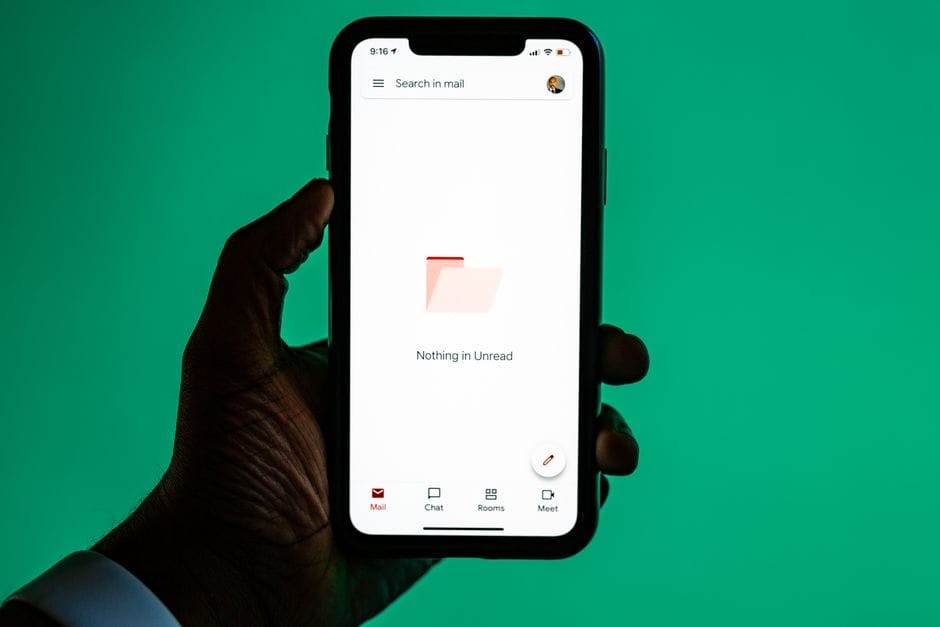
Email attachment limits catch people off guard because they feel generous right up until a scanned document or an image-heavy report quietly exceeds them. A compression tool is usually the fastest fix, reducing the file enough to send normally without switching to a separate file-sharing service.
Why attachments bounce back
Most major email providers cap attachments somewhere between 20 and 25MB, and that limit typically applies to the combined size of every attachment on a single email, not each file individually. A document that seems reasonably sized on its own can still push a message over the limit if a couple of smaller files are attached alongside it.
Getting under the limit
- Upload the oversized PDF to a compression tool.
- Choose a Medium setting first, which balances a meaningful size reduction against keeping quality intact.
- If the result is still too large, move to a stronger setting, or use a target-size mode set just under your email provider's limit.
- Attach the compressed file and send as usual.
Leaving a little headroom below the exact limit, targeting 18MB for a 20MB cap, for example, accounts for the email itself and any signature images adding a small amount of extra size.

When splitting works better than compressing
If the document is long rather than heavy per page, like a fifty-page report where each page is mostly text, splitting it into a couple of smaller parts and sending them as separate attachments can preserve full quality while still getting under the limit, since compression would only help marginally on a document that was never image-heavy to begin with.
A quick way to tell which approach fits
Open the document and skim a few pages. If most of the size seems to come from photos, scanned pages, or embedded images, compression is the more direct fix. If the document is simply very long with mostly typed text and only occasional images, splitting into a couple of parts usually gets under the limit faster, without any visible quality change at all.
An alternative when neither option fits well
Occasionally, a document is both very long and very image-heavy, and neither compression alone nor splitting alone gets it comfortably under a strict limit without either sacrificing quality or producing an awkward number of separate parts. In that specific situation, sharing the file through a cloud storage link instead of a direct attachment sidesteps the size limit question entirely, since the recipient downloads the file directly rather than it passing through the email provider's attachment size checks. This is worth keeping in mind as a fallback, even though a properly sized attachment remains the simpler option whenever it is achievable.

What if the recipient needs everything in a single message?
Some recipients or systems only accept one attachment, ruling out splitting into several files. In that situation, compression is the only real option, and a target-size mode aimed just under the provider's stated limit is more reliable than guessing at an automatic preset.
Frequently asked questions
Does compressing a PDF affect whether it can still be printed clearly?
At moderate compression settings, no meaningful difference is visible when printed. At very aggressive settings aimed at an extremely strict limit, some quality loss can become noticeable, particularly in photos, so checking the result first is worthwhile for anything that will be printed.
Why did my email still bounce even though the PDF itself is under the limit?
Combined attachment size across the whole email matters, not just one file. If other files are attached alongside the PDF, their total needs to stay under the provider's limit together.
Is there a safer number to target than the exact stated limit?
Aiming a couple of megabytes under the provider's published limit is a reasonable safety margin, accounting for the email body and any minor overhead the provider adds when the message is actually sent.
Whether the fix is compression, splitting, or both together depends mainly on why the file got large in the first place, and checking that before choosing an approach saves a round of trial and error.
Related articles
Similar articles
 Optimize PDFHow to Compress a PDF to Under 100KB Online
 Optimize PDFHow to Compress a PDF Without Losing Quality
 Optimize PDFHow to Compress a PDF for a Job Application Upload
 Optimize PDFPDF File Size Limits: Why Uploads Get Rejected and How to Fit Under Any Limit
 Organize PDFHow to Merge PDF Files in Order on Your Phone