PDF Basics
The Final Check: 12 Things to Verify Before You Send Any PDF
A two-minute review catches the sideways page, the missing signature, and the oversized file before your recipient does. Here is the checklist.
By David Valle

Most PDF mistakes are small, and almost all of them are noticed by the recipient rather than by the sender. A page is sideways. A signature page is missing. The file is far larger than the email server allows. A draft comment is still visible on page four. None of these is a disaster, but each one makes you look careless, and some cost real time when an application is rejected or a contract has to be re-sent.
The cure is a short routine you run before every send. It takes about two minutes, and it becomes automatic after a few uses. This checklist has twelve items, grouped by the kind of problem they catch. Where a check reveals a problem, the relevant tool on this site is named so you can fix it straight away.
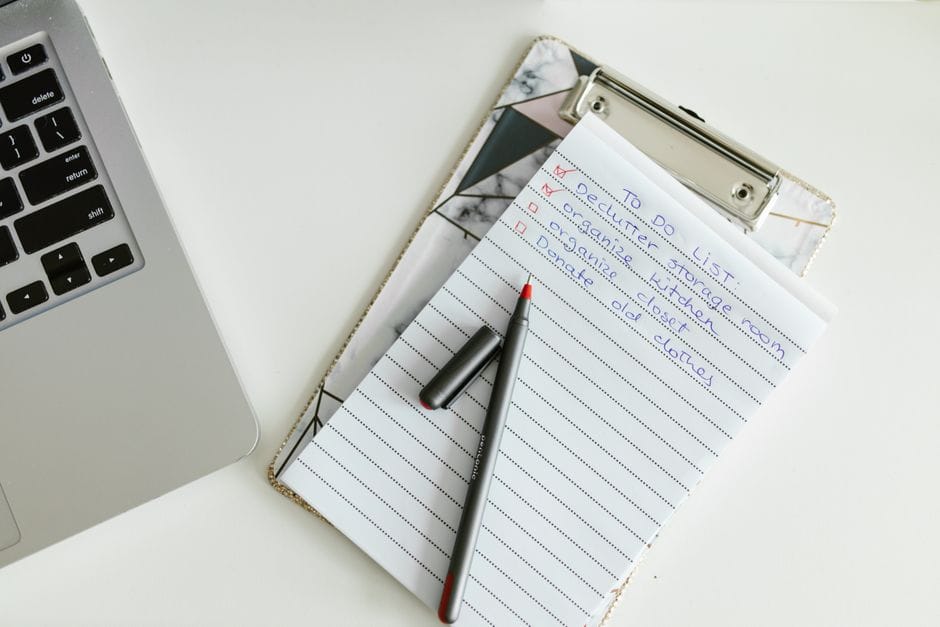
Why a checklist works
People are good at creating documents and bad at reviewing their own work, because we see what we expect to see. A checklist forces you to look at specific things in a specific order, so your eyes stop skimming. Pilots and surgeons use checklists for the same reason: not because they are careless, but because routine tasks invite lapses.
The trick is to review the final file, not the source. Open the exact PDF you are about to send, in a viewer, as the recipient will see it.
Part one: structure
1. Page count
Check that the number of pages matches what you expect. A missing page usually means something went wrong during scanning or merging, and an extra page is often a blank or duplicate. If you spot extra pages, remove them with the delete PDF pages tool. If you need only some pages from a longer file, the extract PDF pages tool builds a new file with just those.
2. Page order
Scroll from first page to last and confirm the sequence makes sense. Watch for signature pages that landed at the front, appendices in the middle, and cover pages at the end. Do not trust the numbers printed on the pages; trust the actual position in the file. If pages are out of order, use the rearrange PDF tool to drag them into place.
3. Orientation
Every page should be upright. Pages that are sideways or upside down are common after scanning, and a viewer sometimes hides the problem by auto-rotating on screen. The way to be sure is to check the thumbnails. Fix any wrong pages with the rotate PDF tool, and remember that the rotation is then saved in the file rather than just displayed. Our article on rotating PDF pages permanently explains the difference.
4. Completeness
Confirm that every document you meant to include is there, and that pages are not cut off at the edges. Scanned pages sometimes lose a margin or a corner, and that can hide a date or a signature. If you are combining several documents, the merge PDF tool lets you rebuild the file with the missing piece in the right position.
Part two: quality
5. Readability
Zoom in on the smallest text: dates, figures, addresses, and signatures. If you cannot read it comfortably at normal zoom, neither can the recipient. Blurry text usually comes from a poor photo or from over-compression. The remedy is a better source image or a gentler compression setting, so go back to the original file rather than trying to fix a weak result.
6. Consistent page sizes
Mixed page sizes look untidy and sometimes cause printing trouble. A PDF built from photos with the fit to image setting can end up with pages of different sizes. If the file is going to a form or a printer, choosing A4 or US Letter in the JPG to PDF tool gives uniform pages.
7. Images and graphics
Look at photos, logos, and charts. Confirm they are present, sharp enough, and not distorted. If a converted file has lost images, go back to the source and try again, or export a PDF directly from the application that created it.
Part three: size and format
8. File size
Check the size against any limit, whether it is an email attachment cap, a portal restriction, or a form requirement. If the file is too large, remove unneeded pages first, then use the compress PDF tool with an automatic level or a target size. Aim a little under the limit, because systems do not always calculate size the same way. Read PDF file size limits and how to meet them for a full plan.
9. Format
Make sure you are sending what was asked for. If the request says PDF, do not send a photo. If someone wants to edit the document, a Word file may serve them better. Our guide on choosing between PDF, Word, and JPG can help you decide.

Part four: content and privacy
10. Sensitive information
Ask yourself what is in this file that the recipient does not need. Look at every page, including headers, footers, and margins. Identity numbers, account details, home addresses, and internal notes sometimes hide in places you have stopped noticing. If a page should not be shared, leave it out by extracting only the pages you need.
Be careful with the idea of covering something up. Placing a white box over text hides it visually, but you should not assume it is the same as removing it. When in doubt, leave the sensitive page out of the shared file entirely.
11. Leftovers from drafting
Check for comments, tracked changes, highlighted notes, and placeholder text such as insert name here. These are easy to miss in a long document and embarrassing when found. If the document came from a word processor, review it there and re-export, rather than trying to fix it inside the PDF.
12. The file name
A good name helps the recipient find and identify your file months later. Use something clear, such as your surname followed by the document type, for example smith-application-form.pdf. Avoid names like scan001, final-final, or new document. Very long names and unusual characters are sometimes rejected by upload systems.
The two-minute routine
Here is how to run all twelve checks without it feeling like a chore.
- Open the final PDF in a viewer and switch to the thumbnail or page grid view.
- Scan the thumbnails for page count, order, orientation, and completeness. This takes about thirty seconds.
- Open two or three pages at full size and zoom in on the smallest text.
- Look at the file size in your file browser.
- Skim for sensitive details and leftover notes.
- Check the file name, then send.
If you always check the first page, the last page, and one page from the middle, you will catch most problems. Errors tend to cluster at the edges of a document.
Situations that deserve extra care
Contracts and legal documents
Confirm that every page is present, every signature and initial is in place, and the version is the correct one. Sending the wrong draft can cause real trouble, so check the date and any version marker.
Job and admission applications
Check readability, order, and size against the portal's rules, and keep a copy of exactly what you uploaded. See our checklist for preparing application documents.
Financial and medical paperwork
Share only the pages required, use official upload channels where offered, and avoid sending sensitive files through casual messaging apps. If you use online tools, choose ones that process files on your device, and read are online PDF tools safe.
Documents made from photos
Photos are the most common source of orientation, order, and size problems. Run the whole checklist. If the source was a phone, our phone scan workflow can prevent the problems in the first place.
Mistakes people make even with a checklist
- Checking the source file instead of the final PDF. Problems often appear during conversion.
- Checking only the first page. Errors are frequently deeper in the file.
- Sending straight after compressing without looking at the result.
- Overwriting the original with the compressed version and losing the high-quality copy.
- Skipping the check when in a hurry, which is exactly when errors occur.
Make it a habit
The easiest way to keep the routine is to attach it to something you already do. Run it every time you are about to click attach or upload, the same way you glance at the recipient's address before pressing send. After a few weeks, the checks take less than a minute, and you will stop being the person whose file arrives sideways.
Frequently asked questions
How long should the final check take?
For most files, about two minutes. Longer documents take a bit more, but the thumbnail view keeps it quick.
What is the single most important check?
Opening the final file and looking at every page thumbnail. That one step catches order, rotation, and completeness problems.
Do I need to check again after compressing?
Yes. Compression can affect readability, especially of small text and photographs.
Can I fix a problem without redoing everything?
Usually. Rotate, rearrange, delete, or extract on the existing file rather than starting again. Your original is never changed by these tools.
What if I find a mistake after I have already sent the file?
Fix it, send the corrected file with a short note, and name it clearly so nobody uses the earlier version.
A checklist will not make you a perfectionist. It simply moves the moment of finding mistakes from after you send to before you send. Two minutes of review is a small price for documents that arrive upright, complete, readable, and exactly as you meant them.
Related articles
Similar articles
 Optimize PDFPDF File Size Limits: Why Uploads Get Rejected and How to Fit Under Any Limit
 Privacy & SecurityAre Online PDF Tools Safe? How to Protect Your Documents
 Organize PDFHow to Rotate PDF Pages Permanently (Not Just in Your Viewer)
 Edit PDFHow to Delete Pages From a PDF for Free
 PDF BasicsWhich PDF Tool Do I Need? A Problem-to-Solution Cheat Sheet