Convert to PDF
How to Convert Multiple JPG Images Into One PDF
Combine a whole batch of photos into a single, properly ordered PDF document in one pass.
By David Valle
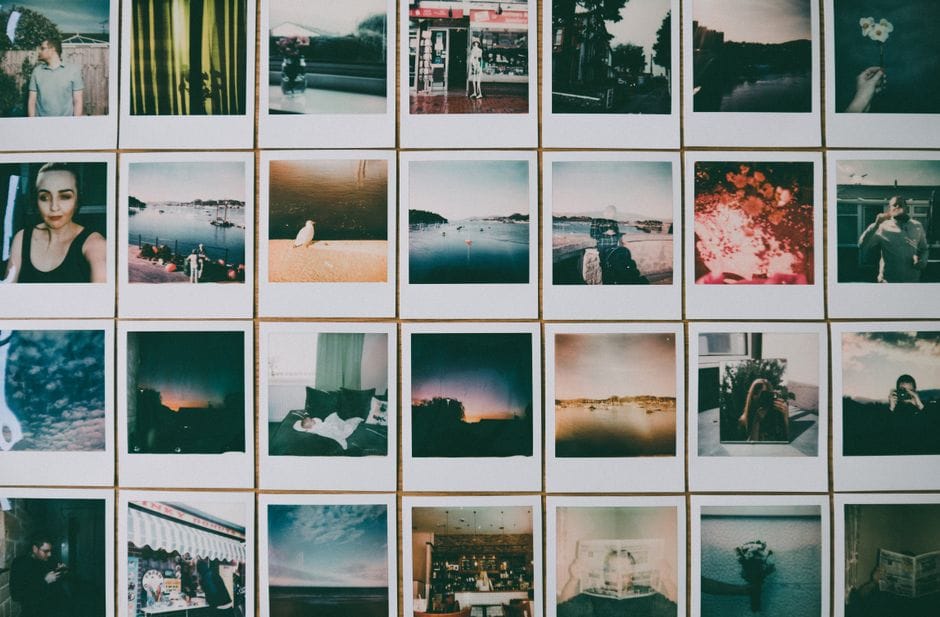
Turning a whole batch of photos into a single PDF, rather than one PDF per image, is the more common need in practice: receipts from a trip, pages of a signed contract photographed one at a time, or scanned pages from a printer's scan-to-JPG feature. A JPG to PDF tool does this in one pass, with every image becoming its own page in a single combined file.
Getting the order right before converting
- Add every JPG image that should be included in the final document.
- Arrange them into the exact sequence they should appear as pages, since the final PDF follows whatever order is set at this step.
- Pick a page style: fit each page tightly to its image, or center it on a standard size like A4.
- Convert and download the combined PDF.
Naming image files with a clear numeric prefix, like 01-cover.jpg and 02-page-two.jpg, before uploading makes it far easier to spot and fix an ordering mistake at a glance, since most tools list files in the order they were added or by file name.
Why one combined file beats several separate ones
A batch of ten separate JPGs sent as ten separate attachments is awkward for a recipient to open in order, and easy to mix up. One combined PDF, with each image already placed as its own page in the correct sequence, opens as a single coherent document, in a format that behaves consistently across every device and PDF viewer, rather than depending on how a particular email client happens to display a pile of individual image attachments.
Handling images of different sizes and orientations
Related guide: for screenshots and other PNG files, see how to convert screenshots and PNG images to PDF.
Photos captured under different conditions rarely share identical dimensions or orientation, a landscape shot mixed in with several portrait ones being especially common. Most image-to-PDF tools handle this automatically, placing each image on its own appropriately sized page rather than forcing every page into one fixed shape. If a completely uniform look across every page matters more than preserving each image's original proportions, choosing a fixed standard page size for all of them, rather than "fit to image," produces a more visually consistent result throughout the document.
A realistic example: trip receipts
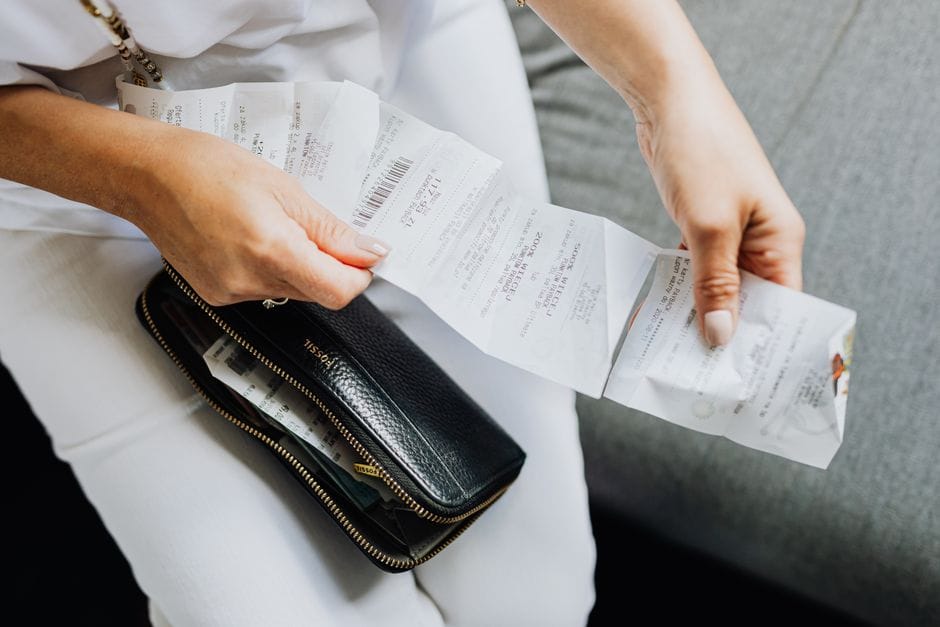
Collecting receipts throughout a business trip is a common source of a growing pile of individual photos. Converting them into one combined PDF at the end of the trip, in date order, produces a single organized expense document instead of a folder of loose images, which is typically far easier for an expense system or reviewer to work through than a batch of separate attachments.
Keeping the source photos until the PDF is confirmed good
Until the combined PDF has actually been opened and checked, it is worth holding onto the original individual photos rather than deleting them right after conversion. Occasionally an image gets skipped during upload, or the page order does not match what was intended, and having the source photos still available means starting over takes a minute rather than requiring the receipts or documents to be re-photographed from scratch. Once the final combined file has been reviewed and confirmed correct, clearing out the individual originals is a reasonable next step if storage space matters.
Frequently asked questions
Does combining several images reduce their individual quality?
No. Each image is placed into its own page using its original resolution and quality; combining them into one file does not resize or recompress any of the source images.
Can images and an existing PDF page be combined into the same final document?
Not in a single step, but a two-step approach works well: convert the images into their own PDF first, then use a merge tool to combine that result with the other PDF.
What if the images end up too large as a combined file afterward?
If the resulting PDF is too big for an email or upload limit, compressing it afterward is the natural next step, rather than trying to solve the size problem during the image-to-PDF conversion itself.
Combining a whole batch of images into one properly ordered PDF turns a scattered pile of individual photos into a single document that behaves the same way everywhere it gets opened.
Similar articles
 Convert to PDFHow to Convert a Scanned Image to PDF for an Admission Form
 Convert to PDFHow to Convert Word, JPG, and Images to PDF
 Convert to PDFHow to Convert a Word Document to PDF Without Losing Formatting
 Convert to PDFHow to Convert Screenshots and PNG Images to PDF
 Convert to PDFPNG or JPG to PDF: Which Image Type Should You Use?