Convert from PDF
How to Convert PDF to Word or Image Files
Turn a PDF back into an editable Word document, or export its pages as JPG or PNG images, without installing any software.
By David Valle
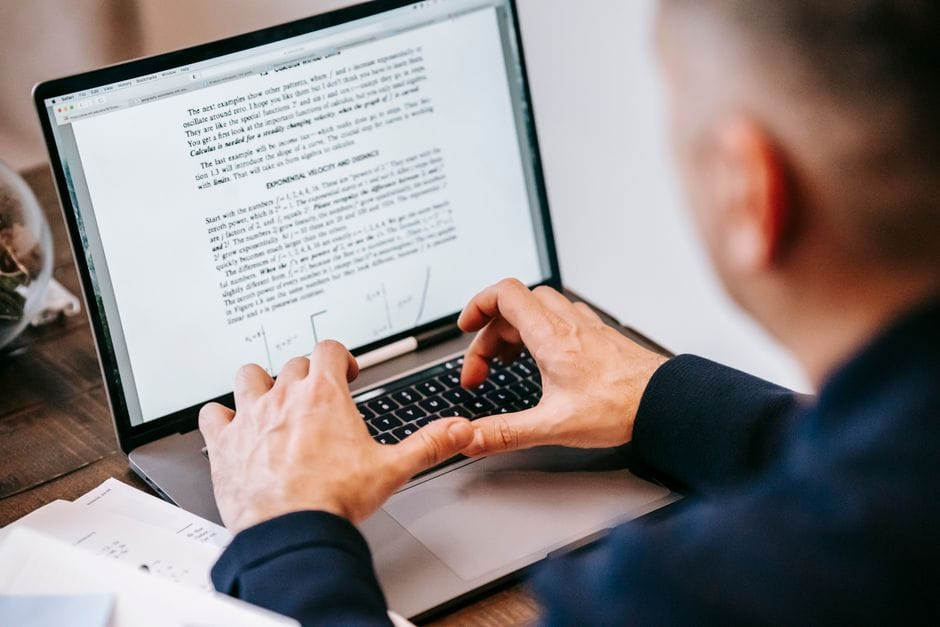
Once a document has been saved as a PDF, editing it directly can be awkward at best. Converting it back into an editable format restores the ability to make changes normally, while converting it into images instead is useful for a different reason entirely: sharing a single page as a picture, or pulling a photo or diagram out from inside a longer document.
Turning a PDF back into an editable Word document
The process, using a PDF to Word tool, generally follows these steps:
- Upload a PDF that contains selectable text, meaning you can highlight and copy individual words when viewing it normally, rather than one made entirely of scanned images.
- Convert it into a DOCX file.
- Open the result in Word and make whatever edits are needed.
Text and basic paragraph structure carry over reliably in most cases. More complex elements, like multi-column layouts, fillable form fields, or text that lives inside a scanned image rather than as real selectable characters, usually need some manual cleanup afterward, since a scanned page has no actual text for the converter to extract in the first place.

Exporting PDF pages as JPG or PNG images
Related guide: How to convert PDF to PNG for slides, docs, and sharp text.
Sometimes the goal is not editing at all, just getting a picture of a page to drop into a presentation, a chat message, or a social post. The PDF to JPG tool and the PDF to PNG tool handle this directly, one image format per tool. For a full walkthrough of the JPG route, see our guide to converting PDF pages to JPG images:
- Upload the PDF.
- Choose which specific pages to convert, or select every page at once.
- Use PDF to JPG for a smaller file that works well for most ordinary documents, or PDF to PNG when a page contains fine text, line art, or sharp edges that benefit from lossless output.
- Convert and download either a single image, or a ZIP archive if more than one page was selected.
Pulling an embedded picture out of a PDF
There is an important distinction between converting a page into an image and extracting an image that already exists inside a page. If a PDF contains an embedded photo or diagram and the goal is to reuse just that graphic, an image-extraction approach pulls out the original embedded picture at its native resolution, rather than producing a screenshot-style rendering of the entire page around it. This matters when the surrounding page contains other content that should not appear in the extracted picture.

Setting realistic expectations for layout after conversion
A frequent point of frustration is expecting a converted Word document to look absolutely identical, pixel for pixel, to the original PDF. For most everyday documents, letters, resumes, simple multi-paragraph reports, that expectation is realistic, since the conversion faithfully carries over text, basic formatting like bold and italics, and paragraph structure. Where expectations should be adjusted is with more visually complex source documents: multi-column newsletters, forms with precisely positioned fields, or pages combining text wrapped tightly around images in specific spots. These layouts depend on exact positioning that word processors and PDF viewers do not always represent the same way internally, so some manual adjustment after conversion should be expected as a normal part of the process rather than treated as a conversion failure.
Knowing this ahead of time changes how the tool gets used in practice: for a simple document, converting and using the result immediately is reasonable. For a visually complex one, converting and then doing a five-minute formatting check before relying on the file saves more time than being surprised by a shifted layout later.
Why some PDFs will not convert to Word cleanly
The single most common reason a PDF to Word conversion looks wrong traces back to how the original PDF was created. A document generated directly from a word processor, presentation tool, or similar software contains real, selectable text, and converts back into Word smoothly because the underlying text data was never lost in the first place. A document created by scanning a physical page, on the other hand, is really just one large image per page as far as the computer is concerned; there is no actual text layer sitting underneath it to convert. A quick way to check which situation applies is to try highlighting a word directly in a PDF viewer. If it highlights individual characters, the document has real text and will convert reliably. If nothing highlights, or the whole page selects as one block, it is an image-based scan, and a text conversion will not have anything reliable to work with.
Choosing JPG or PNG for a given page
JPG works well for the overwhelming majority of ordinary document pages, since it produces a noticeably smaller file with barely perceptible quality loss for typical text and photo content. PNG becomes the better choice specifically when a page contains fine linework, sharp edges, or areas that need transparency preserved exactly, situations where JPG's compression approach can introduce visible artifacts around sharp boundaries. Because each format has its own tool, choose PDF to JPG or PDF to PNG before you upload.

What to do with the result afterward
A DOCX file produced from a PDF conversion is ready to edit immediately in any standard word processor. Images exported from PDF pages are ready to drop directly into a presentation, message, or document. If those exported images later need to be combined back into a single PDF, for instance after annotating or cropping them elsewhere, that direction of conversion is simply the reverse process using an image-to-PDF tool.
Common mistakes worth avoiding
- Trying to convert a scanned PDF to Word and expecting fully editable text, when the source page never contained real text to begin with.
- Defaulting to PNG for every page "to be safe," resulting in unnecessarily large files for pages that would have looked identical as JPG.
- Converting an entire lengthy PDF to images when only one or two specific pages were actually needed.
Frequently asked questions
Why does my converted Word document look wrong or missing text?
This almost always means the source PDF was a scanned image rather than a document with real selectable text. Try highlighting a word in a PDF viewer first; if nothing highlights, the page is an image, and optical character recognition, not a standard converter, would be needed to extract usable text. Our guide to telling a scanned PDF from a digital one shows how to check in seconds.
JPG or PNG: which is the better default for PDF pages?
JPG for most ordinary documents, since it produces a meaningfully smaller file with minimal visible quality difference. PNG when a page has fine text, line drawings, or transparency that needs to stay exact. The two formats have separate tools, PDF to JPG and PDF to PNG.
Is it possible to convert only a few pages instead of an entire document?
Yes. A page-by-page converter lets individual pages be selected or left out before conversion begins, so converting the whole document is never required just to get a couple of specific pages.
Can an image already embedded inside a PDF be pulled out directly?
Yes, using an image-extraction approach rather than a page-to-image converter. This retrieves the original embedded graphic at its native resolution, separate from the rest of the page's content.
How can I tell if a PDF has real text before trying to convert it?
Open the file in any standard PDF viewer and try clicking and dragging across a line of text as if to select it. If individual words highlight the way they would on a normal webpage, the document has real, selectable text and should convert to Word reliably. If nothing highlights, or the entire page selects as one solid block, the page is effectively a picture, and a standard converter will not find any text to extract from it.
Whether the goal is getting back to an editable document or pulling individual pages out as images, both directions run in the browser using OnlyPDF's tools, keeping the original PDF on your own device throughout the process.
Similar articles
 Optimize PDFHow to Compress a PDF Without Losing Quality
 Convert to PDFHow to Convert Word, JPG, and Images to PDF
 Convert from PDFHow to Convert PDF to PNG for Slides, Docs, and Sharp Text
 Convert from PDFHow to Convert PDF Pages to JPG Images (One Page or All of Them)
 Convert from PDFPDF to PNG or JPG: Which Image Format Should You Choose?