PDF Basics
Scanned PDF vs Digital PDF: How to Tell the Difference and Why It Matters
Two PDFs can look identical and behave completely differently. Learn the ten-second test, and what it means for converting, compressing, and editing.
By David Valle

Open two PDFs side by side and they can look the same: a page of text, a logo, a signature. Yet one might behave perfectly when you convert it to Word, and the other might return an empty document. One might be 80 KB and the other 12 MB. The difference is not visible on screen, and it explains many of the surprises people have with PDFs.
The difference is whether the PDF contains real text or only a picture of text. This guide shows how to tell them apart in about ten seconds, why it matters, and what to do in each case.
Two kinds of PDF
Digital PDFs
A digital PDF, sometimes called a native or text-based PDF, is created directly by a program: a word processor, a spreadsheet, a design tool, or a website's print function. The text inside is stored as text. You can select it, search it, and copy it. The file is usually small, and the page looks razor sharp at any zoom level.
Scanned PDFs
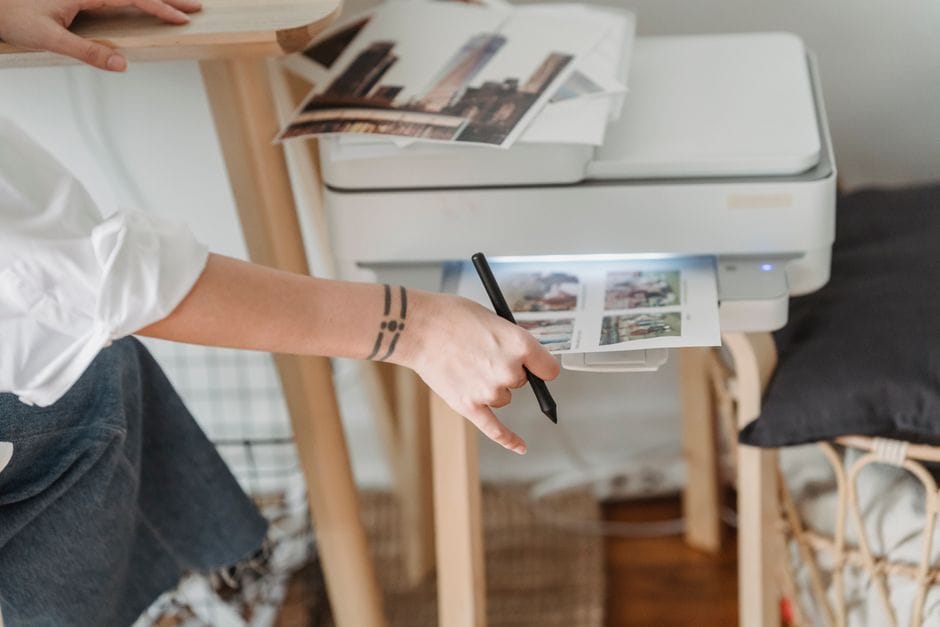
A scanned PDF is made from pictures of paper pages, taken by a scanner or a phone camera. Each page is one image. To your eyes it looks like a document, but to the computer it is a photograph. There is no text to select or search, unless someone has run OCR (optical character recognition) software that adds a hidden text layer.
The ten-second test
You do not need special software. Try these checks in any PDF viewer.
Try to select a word
Click and drag across a line of text, or double-click a word. If the words highlight individually, the PDF has real text. If nothing highlights, or a whole block or the entire page turns blue at once, the page is an image.
Try to search
Use your viewer's search function and look for a word you can see on the page. If the viewer finds it, the text is real. If it reports no results for a word that is clearly there, the page is probably an image.
Zoom in a long way
Zoom to a high level and look at the edges of the letters. In a digital PDF, letters stay crisp at any size. In a scan, letters turn fuzzy or blocky as you zoom, and you may see paper texture, shadows, or slightly crooked lines.
Look for scan clues
A scan often shows uneven margins, a faint grey background instead of pure white, a slightly tilted page, or dark edges where the paper met the scanner. Digital PDFs are perfectly aligned and cleanly white.
Check the file size
A ten-page digital text document is often only a few hundred kilobytes. A ten-page scan is often several megabytes, because every page is a full image. Size alone does not prove anything, but a large file for a text-only document is a strong hint that it is a scan.
If your test gives mixed results, the PDF may be a scan with an OCR text layer. It looks like an image but searches like text. That is the best of both worlds, and quite common in archives and government documents.
Why the difference matters
Converting to Word
The PDF to Word tool extracts text from a PDF and builds a DOCX file. On a digital PDF, it works well and gives you an editable first draft. On a scanned PDF, there is no text to extract, and reliable extraction from pictures requires OCR, which this tool does not perform. If your converted file is empty or contains only images, that is the reason. Read why PDF to Word conversion loses formatting and how to convert a PDF to an editable Word document for more.
File size and compression
Scans are heavy, and they respond well to compression, because the size comes from image data. The compress PDF tool can reduce them noticeably, though very small targets may cost visible quality. Digital text PDFs are already small, so compression gains are modest. If a digital PDF is large, the cause is often embedded images or fonts rather than the text. See PDF file size limits and how to meet them.
Searching and accessibility
A digital PDF can be searched and read by screen readers. A pure scan cannot, which matters for people who rely on assistive technology and for anyone hoping to find a phrase in a long document.
Copying text
If you need a quote or a figure, a digital PDF lets you copy it. With a scan, you would have to retype it or use OCR software.
Print and display quality
Digital PDFs stay sharp at any size. Scans are only as sharp as the original scanning resolution, so enlarging or printing a scan at a big size can look soft.
What to do with each kind
If your PDF is digital
You have the most options. Convert it to Word for editing, extract or delete pages freely, and compress only if you have a size limit. When you can, create the PDF straight from the source document rather than printing and scanning it. That produces a sharper, smaller, searchable file.
If your PDF is a scan
Accept that it is a set of pictures, and work with that.
- Fix orientation with the rotate PDF tool.
- Fix order with the rearrange PDF tool.
- Remove blank or unwanted pages with the delete PDF pages tool.
- Shrink it with the compress tool if there is a size limit.
- Convert pages to images with the PDF to JPG tool if you need pictures.
If you need the text itself, look for OCR software or a document scanning app that offers it. This site does not currently offer text recognition, so it is better to be clear about that than to expect a result the tool cannot deliver.
If you are about to create a scan
Ask whether you really need one. If the original exists digitally, share that. If you must scan paper, do it well: even light, a flat page, and a straight-on angle. Our guide to turning phone photos into a perfect PDF covers the whole process.
Watermarks and scans
Watermarks behave differently on the two kinds. In a digital PDF, a watermark is often a separate element, and the watermark remove tool can find and delete it in Smart mode. In a scan or flattened page the watermark and the content are one picture, so Smart mode finds nothing and Manual mode covers a selected area with a matching colour instead of separating layers. Results on scans depend on how much lies under the watermark. See our guide on removing a watermark by selecting the area.
Common misunderstandings
- A PDF that looks like text must contain text. Not so. A scan looks exactly like text.
- A PDF is small, so it must be low quality. Digital PDFs are small and perfectly sharp.
- A large file is a bad file. It may simply contain scanned images.
- Converting to Word is unreliable. It is reliable for digital PDFs and not for scans.
- A scan with searchable text has real text. It has a text layer produced by OCR, which can contain errors.
A short decision guide
- Text selectable? It is digital, so converting to Word will work.
- Not selectable, large file? It is a scan, so use fix-and-compress tools.
- Not selectable, but searchable? It is a scan with OCR, so it behaves like both.
Privacy
Scans are frequently personal: identity papers, medical letters, statements. The tools mentioned here process files in your browser, so your documents are handled on your own device rather than being uploaded to a server first. See are online PDF tools safe for how to check this yourself.
Frequently asked questions
Can I turn a scanned PDF into a digital one?
You can turn it into a searchable one with OCR software, which reads the pictures and adds text. This site does not offer OCR.
Why is my scanned PDF so large?
Each page is a full image, and images take far more space than text.
Why did PDF to Word give me an empty document?
The PDF is most likely a scan, so there was no real text to extract.
Is a digital PDF always better?
For editing, searching, and file size, yes. For preserving the exact look of a paper original, a good scan is fine.
Can a PDF be part scan and part digital?
Yes. Documents built from mixed sources often contain both kinds of pages, so test a few pages, not only the first.
A ten-second test tells you which kind of PDF you have, and that one fact predicts how it will convert, how large it will be, and what you can do with it. Check before you convert or compress, and you will avoid most of the surprises.
Related articles
Similar articles
 Optimize PDFPDF File Size Limits: Why Uploads Get Rejected and How to Fit Under Any Limit
 Convert from PDFHow to Convert a PDF to an Editable Word Document
 Convert from PDFWhy PDF to Word Conversion Loses Formatting (and How to Deal With It)
 PDF BasicsWhich PDF Tool Do I Need? A Problem-to-Solution Cheat Sheet
 PDF BasicsHow to Use PDF Tools on Your Phone: A Complete Mobile Guide