Organize PDF
A PDF Workflow for Freelancers: Invoices, Contracts, and Client Packets
Send professional, consistent documents every time: from invoice PDFs to signed contract bundles, with a clear naming system and clean client packets.
By David Valle

When you work for yourself, your documents are your first impression and your paper trail. A tidy invoice tells a client that you are organised. A contract bundle with pages in the right order and a clear file name saves both sides from confusion. A messy attachment, a sideways signature page, or a file too large for the client's mail server does the opposite, and it usually happens at exactly the wrong moment.
The following workflow keeps a freelancer's documents professional without becoming a second job. It uses the Word to PDF, JPG to PDF, merge PDF, extract PDF pages, and compress PDF tools, all of which run in your browser.
A note before we start: this is general document-handling advice, not legal, tax, or accounting advice. Requirements for invoices, contracts, and record-keeping vary by country and by the kind of work you do, so check the rules that apply to you or ask a qualified professional.
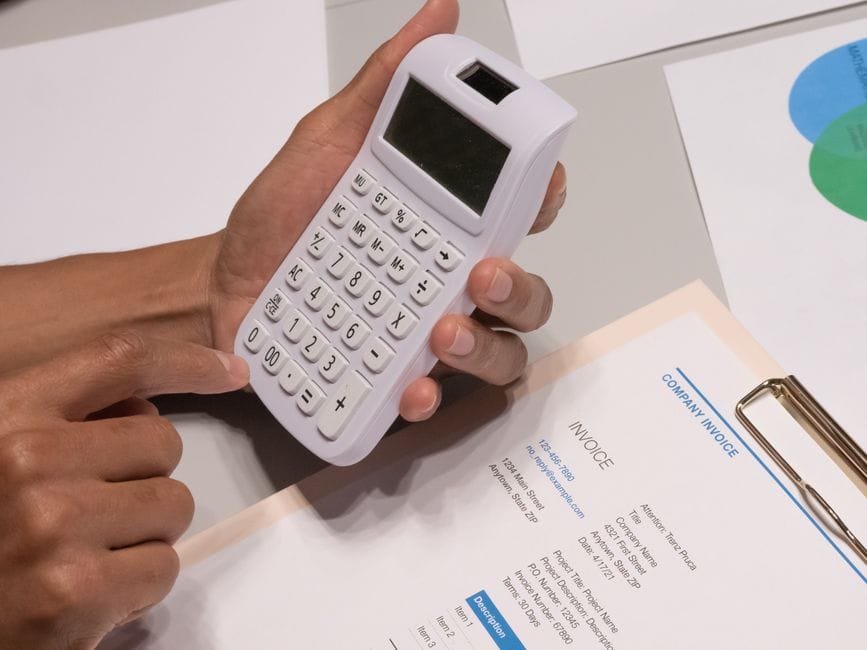
Principle one: templates are the source, PDFs are the deliverable
Keep your invoice and proposal templates as editable files, such as Word documents. Fill in the details, save the editable version to your records, and send a PDF. Sending a PDF prevents accidental edits, keeps the layout identical on the client's screen, and looks more professional.
Invoices
Building a clean invoice PDF
Fill in your template, check every figure, and convert. The Word to PDF tool turns a DOCX file into a PDF, and it is designed for text and paragraph content. Because it produces a simple PDF, complex layouts, floating objects, and advanced tables may not match the original exactly, so open the result and check it before sending. If your invoice template uses a detailed design, exporting a PDF directly from your word processor's save or export option is usually the more faithful route.
What to check before you send
- The client's name and details are correct.
- Dates, invoice number, and amounts are right.
- Payment details are accurate and complete.
- The layout is clean, with nothing cut off.
- The file name identifies it clearly.
Naming invoices
Use a pattern you can sort and search. A dependable one is the date, then the client, then the invoice number, such as 2026-03-14 acme-invoice-0042.pdf. Writing the date as year, month, day makes files sort chronologically. Consistent names also make month-end and year-end bookkeeping far easier.
Contracts and agreements
Sending for review
If the client may suggest changes, send an editable version. When terms are agreed, produce a PDF of the final version for signature, so both sides work from identical text.
Collecting signatures
However signatures are collected, you may end up with signed pages as photos or scans. Turn those into a clean PDF with the JPG to PDF tool, using A4 or US Letter as the page size so pages look uniform. If a page is sideways, fix it with the rotate PDF tool. Whether a particular signature method is legally sufficient depends on your jurisdiction and the type of agreement, so confirm that with a professional where it matters.
Assembling the signed bundle
A signed contract often has several parts: the main agreement, a statement of work, terms, and signature pages. Put them together in the intended order with the merge PDF tool. If the order needs adjusting afterwards, use the rearrange PDF tool. Then scroll through and confirm that every page is present, upright, and in the right position. Our guide on combining Word files, images, and PDFs into one package walks through the steps.
Client packets and proposals
Proposals, onboarding packs, and project deliverables often combine several pieces: a proposal, a scope document, a price list, and a portfolio sample.
- Convert each piece to PDF.
- Merge them in the order a client would want to read them: overview first, detail after.
- Remove any blank or unnecessary pages with the delete PDF pages tool.
- Compress the result if it is heavy, especially if it contains images.
- Check the final file as the client will see it.
Sharing only what the client needs
You may have one large internal document, such as a rate card or a portfolio, from which you only want to share a few pages. Use the extract PDF pages tool to create a new file with only the relevant pages, and leave the original untouched. That keeps internal notes and other clients' work private.

Keeping files light for email
Portfolios and packets with photographs can be large, and client mail systems sometimes reject big attachments. Compress last, using the compress PDF tool with Medium or a target size, and always check readability afterwards. If a file remains very large, consider sending it through a file-sharing link instead of an attachment. Our guide to reducing PDF size for email has more detail.
Presenting a professional image
Small details add up.
- Use clear file names. Avoid scan001 or final-final.
- Send PDFs, not photos, wherever a document is expected.
- Keep page sizes uniform.
- Make sure pages are upright and in order.
- Keep file sizes sensible.
If you sometimes need to show a page as a picture, for example on a portfolio site, the PDF to JPG tool can turn selected pages into images.
Record keeping
Your paper trail matters for taxes, disputes, and your own peace of mind.
- Save the editable source and the PDF you sent, side by side.
- Store signed contracts and paid invoices in folders organised by client or year.
- Back up your records in more than one place.
- Check how long you are required to keep documents in your country, as retention rules vary.
Our guide to organizing digital paperwork sets out a simple folder and naming system that suits a freelance business.
Handling client documents with care
Clients may share confidential material: internal reports, financial data, personal information. Treat it accordingly.
- Store it in a protected location.
- Share only what is necessary, and only with the people who need it.
- Prefer tools that process files on your device. The tools mentioned here run in your browser, so documents are handled on your own device rather than being uploaded to a server first. Read are online PDF tools safe to learn how to check a tool's behaviour.
- Check any confidentiality obligations in your contracts.
A weekly routine
A short, regular routine beats a monthly scramble.
- Send invoices as PDFs with consistent names.
- File signed documents the day they arrive.
- Save editable sources with the PDFs.
- Back up once a week.
- Check outstanding invoices and follow up.
The pre-send checklist
Before you send any document to a client, confirm the following.
- It is the correct version.
- Names, dates, and figures are right.
- All pages are present, upright, and in order.
- The file is readable at normal zoom.
- The size suits email or the client's upload system.
- The file name is clear.
- Nothing confidential or internal is included by mistake.
The 12-point final checklist expands on each of these points.
Common mistakes
- Sending editable files when a final version is intended.
- Forgetting to check a converted layout.
- Using unclear file names that confuse both sides.
- Merging documents in the wrong order.
- Sharing a whole file when only a few pages were meant for the client.
- Keeping only the PDF and losing the editable source.
- Not backing up.
Frequently asked questions
Should I send invoices as PDF or Word?
PDF. It keeps the layout fixed and prevents accidental changes.
Can I put several documents into one PDF for a client?
Yes. Convert each to PDF and merge them in the order the client should read them.
How do I share just part of a document?
Extract the relevant pages into a new file and check it before sending.
Is a scanned signature page acceptable?
That depends on the agreement and where you work. Check the requirements for your situation, and use a clear scan or photo converted to PDF.
How long should I keep records?
It varies by country and document type. Check local rules or ask a qualified professional.
A freelancer's PDF habits do not need to be complicated. Keep editable sources, send clean PDFs, check pages before sending, use consistent names, share only what is needed, and back everything up. Those few habits make you look organised, and they make your own work easier too.
Related articles
Similar articles
 PDF BasicsHow to Organize Your Digital Paperwork: A Simple Folder and Naming System
 PDF BasicsThe Final Check: 12 Things to Verify Before You Send Any PDF
 Convert to PDFHow to Combine Word Files, Images, and PDFs Into One Document Package
 Organize PDFHow to Merge PDF Files in Order on Your Phone
 Organize PDFHow to Combine PDF Files Without Adobe Acrobat