Organize PDF
How to Add a Blank Page to a PDF (Anywhere You Need One)
Add one or many blank pages before, after, or between pages of a PDF, matched to the page size you already have.
By David Valle

A blank page sounds trivial until you need one. Maybe a printed booklet needs an empty back for the cover, a chapter should start on a right-hand page, or you want a space to write notes after a diagram. Most PDF viewers cannot add pages at all, so people end up exporting from a word processor just to get an empty sheet.
The Insert PDF Pages tool adds blank pages directly, in the place you choose. This guide shows how, and how to avoid the mistakes that make a blank page look wrong.
The steps
- Upload your PDF to the Insert PDF Pages tool.
- Choose the position: before page 1, after a particular page, or at the end.
- Choose blank pages as the thing to insert.
- Set how many pages you want, and pick a size.
- Check the summary, select Insert pages, and download the new PDF.
The tool can add many blank pages in one go, up to 200, so a long run of notes pages is a single job.
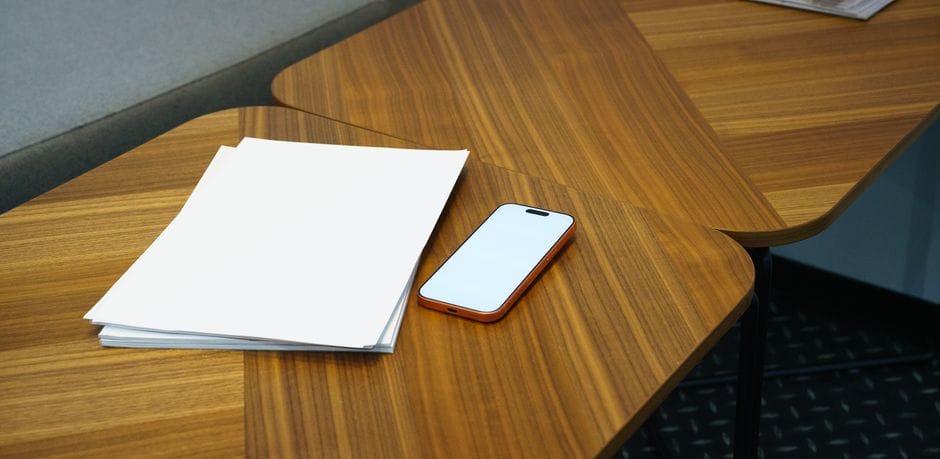
Choosing the page size
You have three choices for the size of the new page:
- **Match the neighbouring page.** The blank page copies the size of the page next to it. This is usually the right choice, because the document stays uniform when you scroll or print.
- **A4.** Use this when the document is meant for A4 paper, or when the neighbouring page is unusual and you want a standard sheet.
- **US Letter.** Use this for documents that will be printed in the United States or Canada.
If the PDF mixes sizes, matching the neighbour keeps each blank page in proportion with the page next to it, which is usually what you want.
Common reasons to add a blank page
- **Notes pages.** Insert a few blank pages after a diagram or a form so people have room to write.
- **Section dividers.** A blank sheet between chapters makes a printed document easier to flip through.
- **Duplex printing.** When a section should start on a right-hand page, a blank page before it pushes the section onto the correct side. Check the page count afterwards, because an odd number of pages in front shifts everything.
- **Space for a stamp or signature.** An empty page at the end gives a reviewer somewhere to sign without covering your content.
Adding a blank page does not change any existing page. Everything after the position simply moves down one page number for each blank page you insert.
Mistakes to avoid
- **Counting the wrong page.** Page numbers in a viewer can differ from numbers printed on the page. Use the position shown in the tool, which counts physical pages from the start of the file.
- **Forgetting that later pages shift.** If you add a blank page after page 3, the old page 4 is now page 5. Plan any second insertion with that in mind, or work from the back of the file first.
- **Using a blank page where a page break was meant.** If a document is still editable in Word, a page break there is cleaner than a blank PDF page.
- **Leaving unintended blank pages in a final file.** An accidental empty page looks careless. If you later need to take one out, the delete PDF pages tool removes it, and our guide to removing blank pages from a scanned PDF covers the cleanup in depth.
Adding blank pages and other content together
One run handles one kind of new content at one position. If you want a blank divider and also a new cover page, run the tool twice. The complete guide to inserting pages explains how to plan multi-step jobs so page numbers stay predictable.
Check before you send
Open the finished PDF and scroll through the new pages. Confirm that the size looks right next to its neighbours and that the page count is what you expected. Our final checklist takes two minutes and catches the small things.
Privacy
The new PDF is built in your browser. Your document is not uploaded to a server, and your original file is not changed.
Frequently asked questions
How many blank pages can I add at once?
You can add up to 200 blank pages in a single run.
Can the blank page match my document's size?
Yes. Choose the option that matches the neighbouring page, or pick A4 or US Letter.
Can I add a blank page at the very beginning or end?
Yes. The position menu includes before page 1 and at the end.
Will it change my original PDF?
No. A new file is created, and your original stays untouched.
A blank page is a small thing, but putting it in the right spot, at the right size, makes a document feel finished.
Related articles
Similar articles
 Organize PDFHow to Insert Pages Into a PDF: The Complete Guide
 Organize PDFHow to Merge, Reorder, and Organize PDF Files (Complete Guide)
 PDF BasicsThe Final Check: 12 Things to Verify Before You Send Any PDF
 Organize PDFHow to Insert Pages From One PDF Into Another at a Specific Position
 Organize PDFInsert vs Merge PDF: Which Tool Should You Use?