Edit PDF
How to Remove Blank and Unwanted Pages From a Scanned PDF
Double-sided scanning leaves blank pages behind. Here is how to spot them and clear them out in a couple of minutes.
By David Valle

Scan a stack of double-sided paper on a scanner set to duplex, and you will usually get a blank page after every sheet that was printed on one side only. Add a stray page from the feeder, a cover sheet, or a page scanned twice, and a tidy ten-page document turns into twenty. Cleaning that up takes only a few minutes.
How blank pages get in
- Duplex scanning. The scanner captures both sides of every sheet, including the empty ones.
- Double feeds and rescans. A page that jammed and was scanned again shows up twice.
- Separator sheets. Cover pages or dividers used to organise the paper stack come along for the ride.
Finding the pages
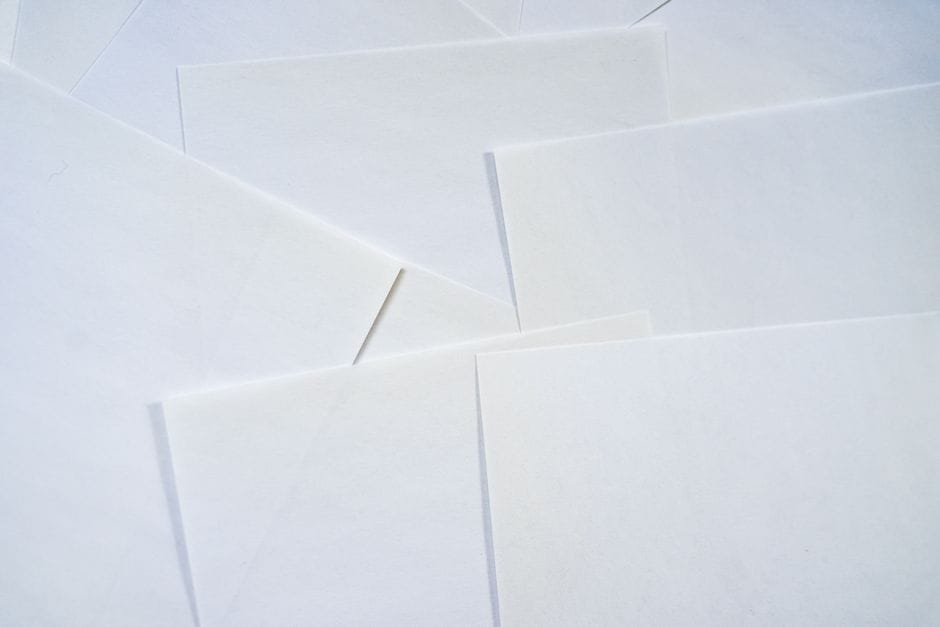
This is manual work, but the previews make it fast. Open the delete PDF pages tool, upload the file, and scan the thumbnails. Blank pages stand out as white rectangles. Note that a page that looks empty may contain a faint scanner shadow or a small footer, so check anything you are unsure about before removing it.
The cleanup
- Tap every blank or unwanted page in the preview.
- Take a second look through your selection to make sure no real content is included.
- Apply the deletion and download the new file.
The tool does not guess which pages are empty for you. You decide, which is safer for documents where a nearly blank page, such as one that says "This page intentionally left blank", might matter.
If a page has only a page number or a light watermark, it may look blank at thumbnail size. Zoom in or check the neighbouring pages before deleting it.
Tidy the rest while you are there
Once the extra pages are gone, a couple of follow-up fixes are usually worth doing:
- Rotate any pages that came out sideways.
- Rearrange pages that were fed out of order.
- Compress the file if it is still too large to email.

Scan more cleanly next time
- Turn off duplex scanning for one-sided originals.
- Keep the stack squared and free of staples and clips so the feeder does not double-feed.
- Remove separator sheets before scanning.
How many pages to expect
A stack of sheets scanned duplex produces exactly twice as many pages as sheets. If half of the originals were printed on one side only, roughly a quarter of the resulting pages will be blank. Knowing this helps you sanity-check the result: if a fifty-sheet stack gave you one hundred pages, and the previews show a blank on every second sheet, the count adds up.
Cleaning a large scan efficiently
- Scroll through the thumbnails in order rather than jumping around.
- Move down the list in order, tapping each blank as you see it.
- Do not deselect and reselect repeatedly; make one deliberate pass, then one review pass.
For a very large scan, work in short stretches and take a break between passes, since spotting blanks gets harder the longer you look. Note that the split PDF tool turns every page into its own file, so it is not the right way to cut a document into sections.
Why blank pages are worth removing
Blank pages are more than a cosmetic nuisance. They waste paper when the document is printed, they make a file larger than it needs to be, and they make readers wonder whether something is missing. In application portals with page limits, a few blanks can push a document over the allowed count. Spending two minutes removing them makes the file smaller, cheaper to print, and easier to read.
Keep a clean master
Related guide: need the opposite? How to add a blank page to a PDF shows how to insert one exactly where you want it.
After cleaning, save the tidy version as your master copy and archive the raw scan separately if you need to keep it. Working from one clean file means the next person to print, share, or convert the document never has to repeat the cleanup, and there is no risk of the blank-filled version being sent by mistake. A clear file name makes the difference obvious at a glance.
Frequently asked questions
Can the tool remove blank pages automatically?
No. You choose which pages to remove from the previews, so nothing is deleted without your say-so.
Will removing pages affect the text in the others?
No. The remaining pages are unchanged.
What if I delete the wrong page?
Your original file is untouched. Go back to it and run the tool again with the right selection.
A minute of checking thumbnails is all it takes to turn an untidy scan into a clean document.
Similar articles
 Edit PDFHow to Delete Pages From a PDF for Free
 Organize PDFHow to Merge, Reorder, and Organize PDF Files (Complete Guide)
 Organize PDFHow to Split a PDF Into Individual Pages
 Organize PDFHow to Extract One Page From a PDF Without Software
 Organize PDFHow to Split a Large PDF Into Smaller Files Under 5MB